Teachers
The teachers you create will later be assigned to teach subjects. You'll want to create a teacher card for all teachers in your school, even if they only teach one subject. ScheduLearn ensures that no teacher will be double booked, that is, it will never generate a schedule where the teacher teaches more than one lesson at the same time.
Adding a Teacher
Click the Add Teacher button on the toolbar of the Teacher Page.
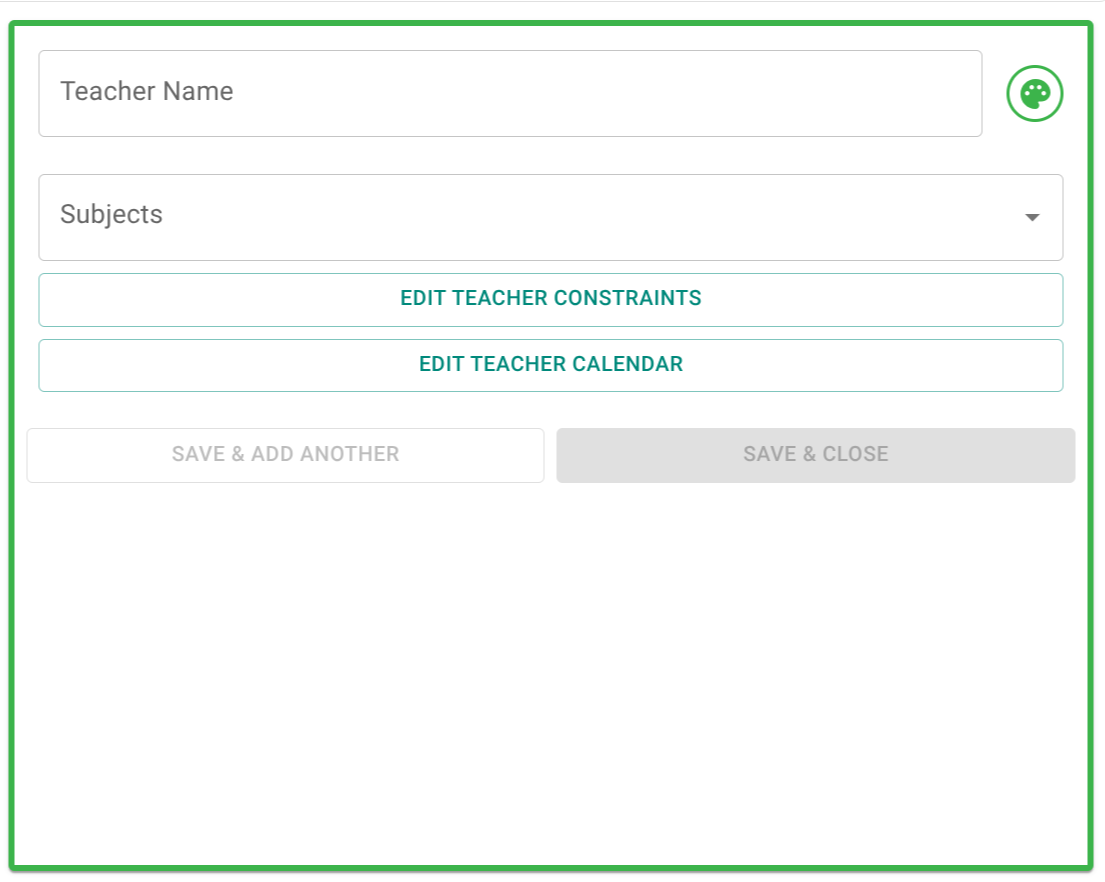 Figure 1: The Teacher Card used to create or edit a teacher.
- Class Name: The teacher name. Teachers are sorted alphabetically on the Teachers Page, some schools prefer to put the last name first to more easily locate teachers.
- Color Picker: You can modify the teacher color from the one given.
- Subjects: The subject selector shows the subjects that the teacher teaches. You may not see this field initially if no subjects have been created yet. Typically, you’ll assign subjects to teachers while creating the subjects themselves, but you can modify from either end.
Constraints
Teacher Calendar Constraints
To modify the availability and calendar preferences of a teacher, click the Edit Teacher Calendar button. By default, every period that has school is marked green. Periods that don't have school are grey and can't be modified.
In general, there are two types of constraints in ScheduLearn.
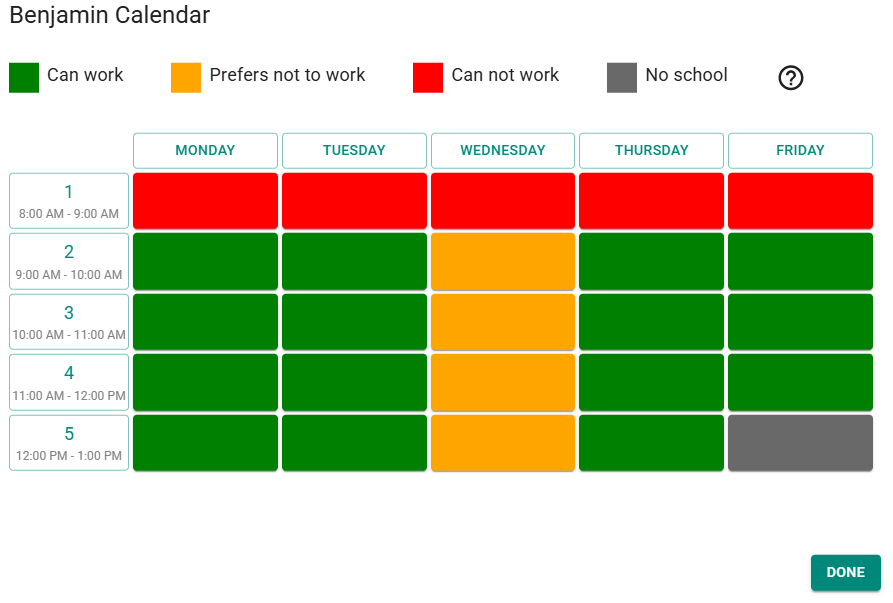 Figure X The Teacher Calendar Editor
- Red constraints/hard constraints: These constraints are a 'must meet'. If it's not possible to meet all of the hard constraints, the scheduler will attempt to find the smallest group of hard constraints that together can't be met due to a scheduling conflict. (For instance, if you don't leave enough time for Benjamin to teach all of his lessons).
- Yellow constraints/soft constraints: Yellow constraints are preferences. The scheduler will attempt to meet as many of them as possible, but unlike with red constraints, if it isn't possible to meet all of them it will not cause a scheduling conflict.
We highly recommend using yellow constraints when the requirement is not a must meet.
To modify the calendar, you can click on any individual cell to toggle it from green -> yellow -> red -> green. Or click on any of the day or period buttons to toggle the whole row or column.
In the example in figure X, Benjamin can not work first period, and prefers not to teach on Wednesday in general.
Teacher Constraints
You may have certain constraints that can not be modelled simply by blocking time off from the calendar. There are a number of other types of constraints that are meant to help in these situations.
To add a teacher constraint, click the Edit Teacher Constraints button.
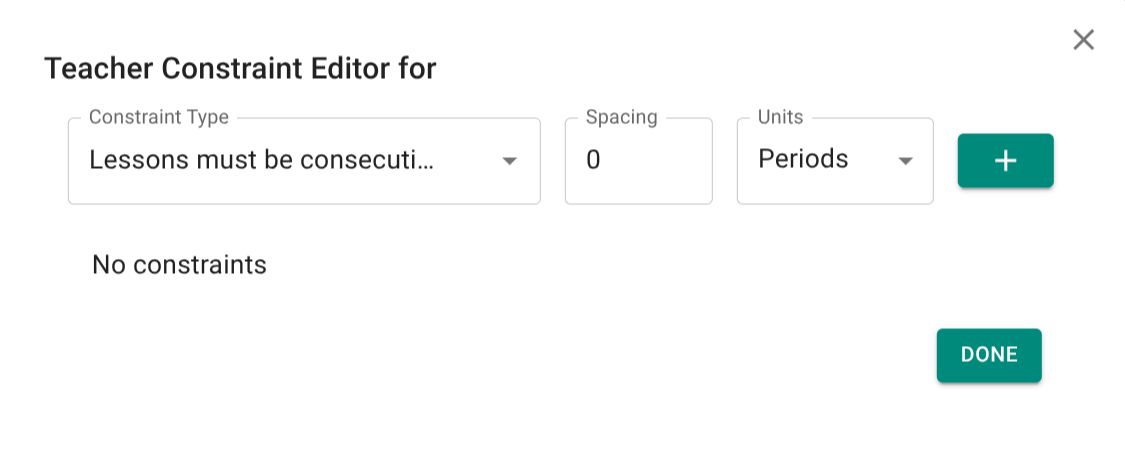
- Lessons must be consecutive
- Spacing - the amount of leeway allowed. A spacing of 0 means that the lessons must be back to back. A period of 1 means that on any given day the teacher can have 1 period between lessons. So if the teacher teaches 3 lessons a day and you add the constraint with spacing of 1 period, the lessons will be scheduled within 4 periods.
- Units - Periods or Minutes. We recommend using periods where possible, although if you have periods of varying lengths you may want to use minutes instead. See consecutive constraints if you need a specific set of subjects to be consecutive. This constraint applies to all subjects that the teacher teaches.
- Max teaching days - The maximum number of days that the teacher can teach. If you know which days the teacher can't teach, use teacher calendar constraints.
- Max lessons per day - For any day that the teacher is teaching, she must teach no more than the amount specified. If the value is set to 3, for instance, the teacher will not have more than 3 lesson scheduled on any day.
- Min lessons per day - For any day that the teacher is teaching, she must teach at least the amount specified. If the value is set to 3, for instance, this does not require that she teach 3 lessons every day, just that for any day that she does teach there will be 3 lessons. > Make sure there are sufficient lessons for this constraint to be possible.
- Max consecutive lesson on a day - A rather niche constraint, that you can use to ensure a teacher has sufficient breaks in the day (almost the opposite of the consecutive constraint). - Max Consecutive Lessons - how many lessons can the teacher teach before requiring a break - Min Break Time - how long must the break be. - Units - either periods or minutes.
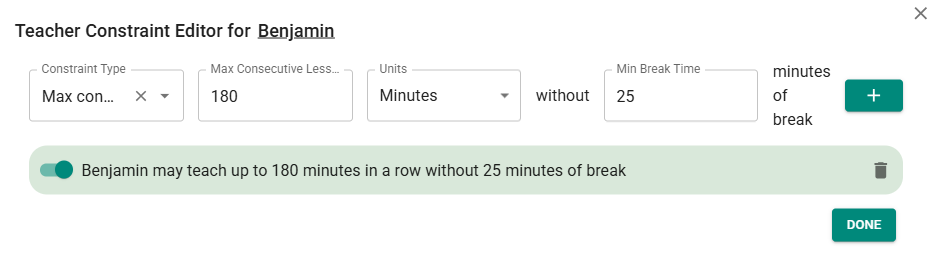
Note for multiple schedule structure users. For any constraint that has a Units option, Periods will not be available if the teacher teaches in more than one schedule structure.
Teacher constraint weights
This is an advanced feature that is not enabled by default as most schools won't require it, and certainly not when they are just getting started. This section will explain how it works, but we recommend seeing the full section on Weighted Constraints to learn more about their use and purpose.
Enabling Teacher Weights
There is a settings icon on the toolbar of both the Constraints Page and the Schedule Page.
Each contains the same Constraint Weights section seen in Figure X.
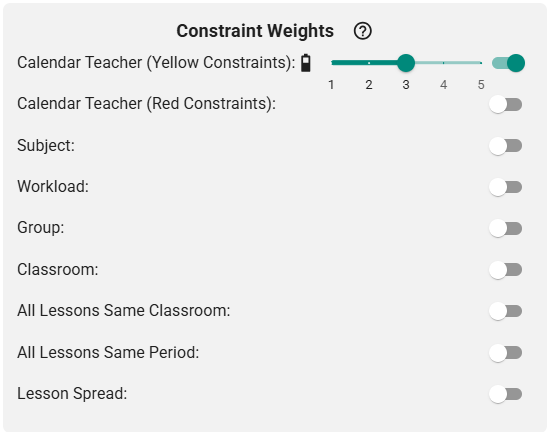 Figure X
By default, all constraint weights are off. The two relevant constraint weights are the Calendar Teacher (Yellow Constraints) and Calendar Teacher (Red Constraints) Enabling either one will give you access to the weight slider on the teacher card. See the following section on the difference.
Modifying Teacher Weights
Once the feature is enabled, each teacher card will now have a weight slider.
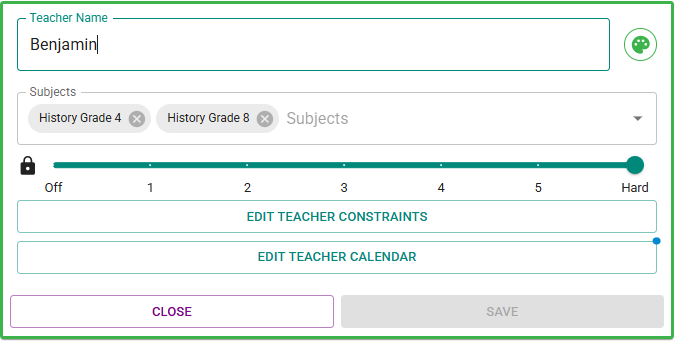 Hard
It will default to "5"
Hard
It will default to "5"
Meaning of a Teacher Weight
Write this section once the following change has been implemented. Remove "Hard" from the constraint weight slider here. When only yellow constraint weights are enabled it's confusing. Then, when teacher red constraint weights are enabled we add a checkbox next to the slider indicating whether we want to treat the red constraints with the same weight.
Teachers and Multiple Schedule Structures
This section is only relevant for schools that have more than one schedule structure.
There are a few important points when it comes to teachers that teach in more than schedule structure.
Teacher Calendar Constraints
When you initially create a teacher when you have multiple schedule structures, you won't be able to add calendar constraints until the teacher is assigned at least one subject. This is because calendar constraints are tied to specific schedule structures. For teachers that teacher in more than one schedule structure, you can add constraints to each structure.
Once you add a subject to the teacher, ScheduLearn determines which schedule structure the teacher teaches in based on the class that the subject is taught in.
When you go to add teacher constraints to a teacher who teaches in more than one schedule structure, you will see a drop down that allows you to choose the schedule structure that you want to add constraints for.
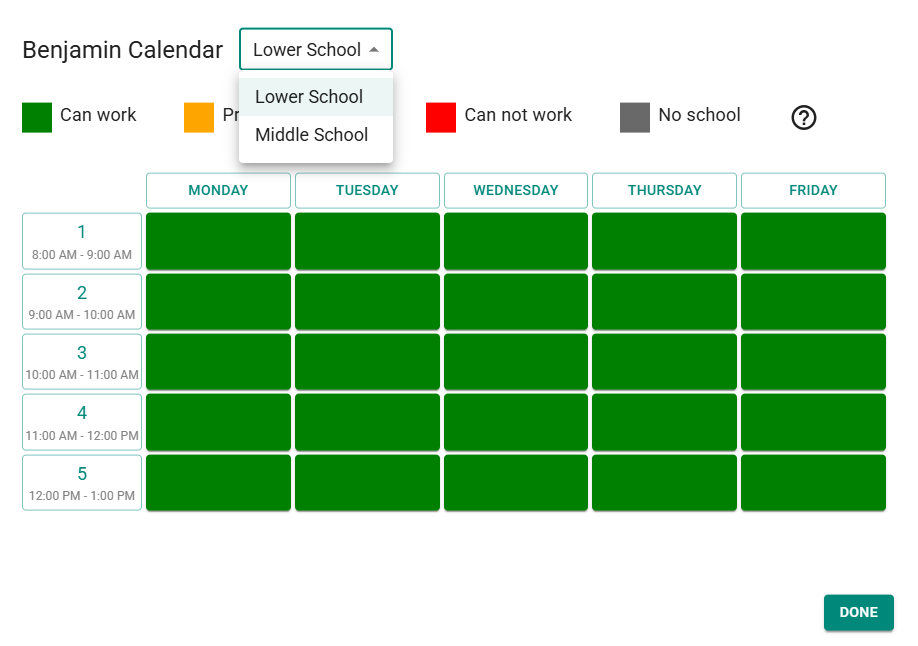 Calendar constraints will only apply to the subjects that are taught in that specific schedule structure. This allows you to add specific calendar constraints for each schedule structure. For instance, if you have a teacher that teaches in both the Lower School and the Middle School but can only teach in the Lower School in the morning and the Middle School in the afternoon, you could first block off the afternoon for the Lower School calendar and block off the morning for the Middle School calendar.
Since this is a common point of confusion we'll reiterate: the teacher calendar constraints added are specific to schedule structures and are only relevant to the specific subjects that the teacher teaches in that schedule structure.
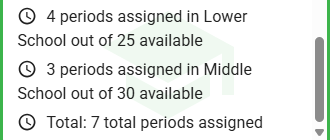
The closed card for a teacher in more than one structure will provide details for each structure.
Teacher Constraints 
As mentioned, teacher constraints such as Lessons must be consecutive or max consecutive lessons on a day which have a unit field will require the use of Minutes instead of Periods for teaches that teach in more than one schedule structure. If you add a period based constraint before making the teacher teach in more than one schedule structure, we will delete that period constraint when you go to add a new subject.
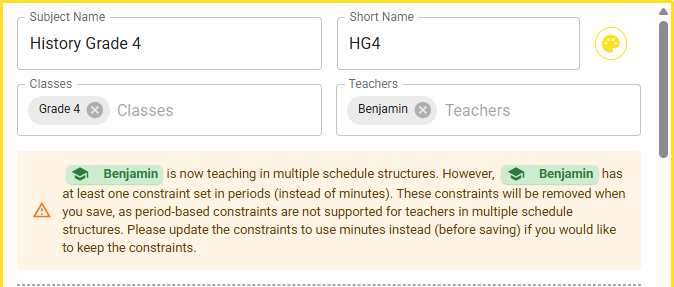 Figure X - Warning of deletion of period based constraints.
In this example, Benjamin already teacher History Grade 8 in the Middle School which runs on a different schedule structure than the Lower School which Grade 4 is part of. As such, any period constraint (ie. Benjamin's lessons must be consecutive within 2 periods) will be deleted when we save this subject.
Figure X - Warning of deletion of period based constraints.
In this example, Benjamin already teacher History Grade 8 in the Middle School which runs on a different schedule structure than the Lower School which Grade 4 is part of. As such, any period constraint (ie. Benjamin's lessons must be consecutive within 2 periods) will be deleted when we save this subject.
Teacher Schedule Page
Take the following fictitious example to see how the schedule page differs for a teacher that teaches in more than one schedule structure.
Setup There are two schedule structures:
- Lower School: Starts school at 8am and has 5 one hour periods (so it ends 1pm).
- Middle School: Starts at 7:30am and has 6 one hour periods (so it ends at 1:30pm).
Benjamin teaches two subjects:
- History Grade 4 (part of the Lower School)
- History Grade 8 (part of the Middle School)
Benjamin can't teach past 12:30, so we added the following constraints to his schedule
- Lower School - Make period 5, 12:00pm -1pm red.
- Middle School - Make period 6, 12:30pm-1:30pm red, and period 5 11:30-12:30pm yellow (as it runs up to 12:30pm, he prefers not to teach that period).
For a teacher that teaches strictly within one schedule structure, ScheduLearn will display that teacher constraints/preferences using red/yellow dashed boxes in the schedule to indicate the constraints. For teachers, such as Benjamin, that teach in more than on schedule structure, we don't display any constraint blocks until you are dragging a lesson. Then we display the constraints of the
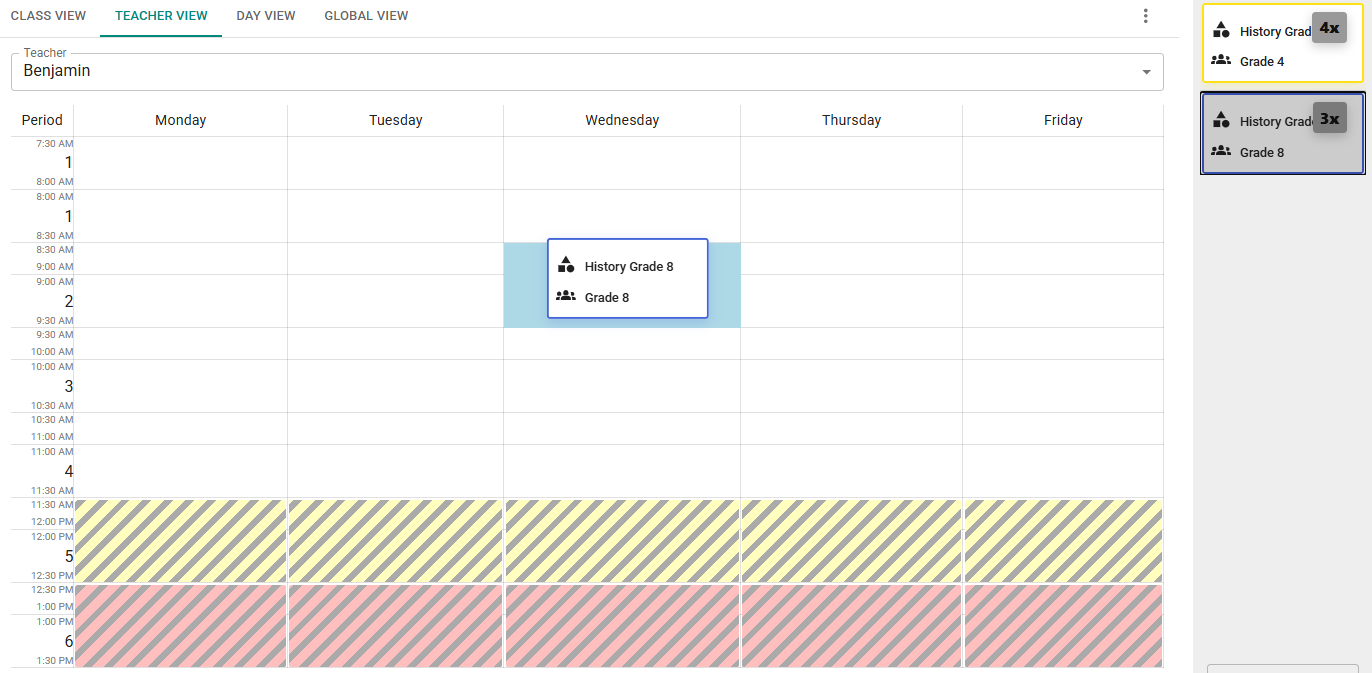 Figure X Dragging a lesson from the Middle School
Dragging the lesson from History Grade 8 which is part of the Middle School reveals the Middle School teacher calendar constraints (period 5 yellow, period 6 red). ScheduLearn will highlight (in blue) where the lesson will be placed and will only allow you to place the lesson in a spot that matches with its schedule structure.
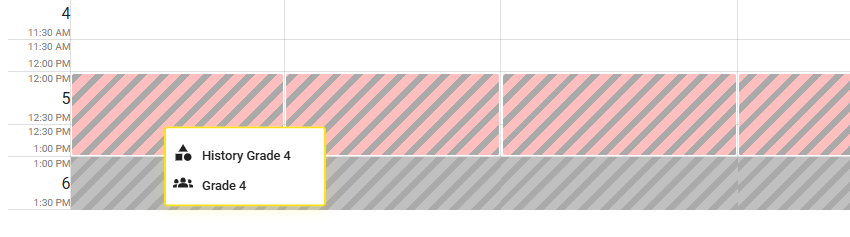 Figure X Dragging a lesson from the Lower School
Similarly, dragging History Grade 4, which is part of the Lower School, we display the Lower School teacher calendar constraints (period 5 red). Notice also that the time 1pm-1:30pm is grey. This is because this time does not exist in the Lower School schedule.
Figure X Dragging a lesson from the Lower School
Similarly, dragging History Grade 4, which is part of the Lower School, we display the Lower School teacher calendar constraints (period 5 red). Notice also that the time 1pm-1:30pm is grey. This is because this time does not exist in the Lower School schedule.
As noted earlier, calendar constraints only affect lessons in the schedule structure that the constraint is connected to. So, for instance, there would be no issue with History Grade 4 being in the period 4 slot despite the Middle School yellow constraint blocking period 5 (which overlaps with period 4).