Subjects
To see the basics of how to create a subject, see the Subjects section in the Entering Data guide.
This guide explains how subjects work in more detail and how to make more advanced modifications.
Terminology: Subjects are composed of individual lessons. A lesson is the actual meeting time of that subject.
Every subject must have at least one teacher or at least one class. All selected classes will attend each of the subject’s lessons together (at the same time). Similarly, all selected teachers will teach the subject.
The following examples make this clearer:
- If you have a subject “English” taught to both 6th and 7th grade separately, you should create two subjects: one for 6th Grade English and one for 7th Grade English.
- If you have a combined subject—e.g., PE—where 6A and 6B take PE together, you should select both 6A and 6B for that one subject.
- Selecting multiple teachers means all of them teach the subject simultaneously. This is useful for co-teaching, teaching assistants, or scheduling shared events like staff meetings (see A Subject with No Class).
Selecting multiple teachers does not mean that either teacher can teach the subject. ScheduLearn does not yet support assigning one teacher from a group.
A Subject with No Teacher
You are not required to select a teacher for a subject. If left blank, it will appear as “No Teacher.” This is useful if the teacher is not yet assigned, or for non-teacher activities such as Lunch.
At the bottom of the Subjects page, ScheduLearn lists all subjects without a teacher, helping you easily review and update them.
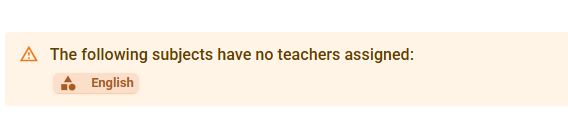 Figure 1 — Subjects with no assigned teacher.
A Subject with No Class
If you need something to appear only in teachers’ schedules, you can create a subject without assigning it to any class. For example, if three teachers have a weekly meeting, you can create a subject called “Teacher Meeting,” leave Classes empty, and choose the three teachers. All three will have this meeting scheduled at the same time.
See Figure 2, noting the blue warning bar at the bottom of the card.
Multiple Schedule Structures Note
If you have more than one Schedule Structure, you must select the structure in which the lessons should be scheduled. When a class is selected, the structure is known automatically because each class belongs to exactly one structure. However, teachers may teach in multiple structures, so for subjects without classes you must explicitly choose the correct structure.
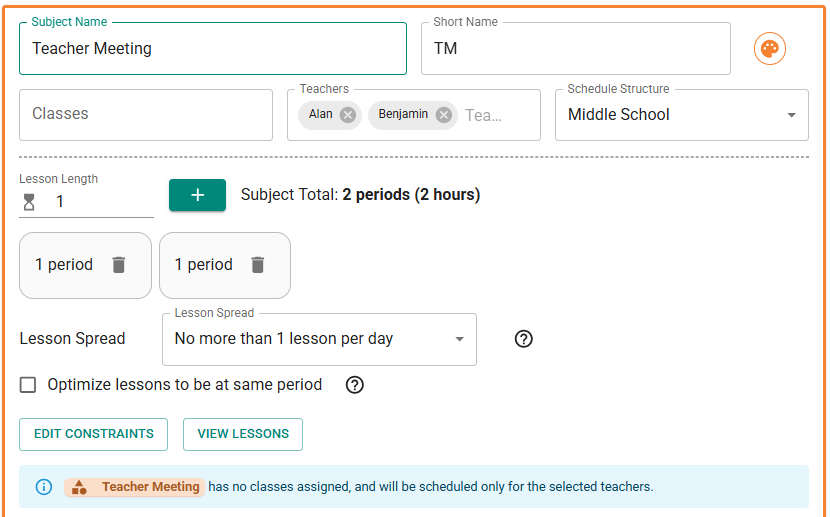 Figure 2 — A subject used to schedule a teacher meeting.
Constraints
When you add a constraint to a subject, it applies to each of its lessons.
Subject Calendar Constraints
Similar to teacher calendar constraints, you can block off specific times when lessons should not be scheduled.
Subject Constraints
These constraints relate one subject to another:
-
Same time as Allows, and requires, the two subjects’ lessons to occur at the same time. Make sure the subjects are taught by different teachers; otherwise this will cause a scheduling conflict.
-
Can be same time as Allows (but does not require) lessons of Subject A to occur at the same time as Subject B.
-
Same day as The subject with fewer lessons will only be scheduled on days when the other subject has lessons.
Example: If A has 3 lessons and B has 4 lessons, and both have the lesson spread enforcing lessons to be on different days, then every day A has a lesson, B will also have a lesson.
-
Not the same day as No lesson of A may occur on the same day as any lesson of B.
This will cause a conflict if the total number of lessons exceeds the number of available days (unless lesson-spread settings allow more than one lesson per day).
-
Same period as
The lessons will be placed in the same period on different days.
Example: Art and Music each meet once per week; adding this constraint might put Art on Monday Period 3 and Music on Tuesday Period 3.
This constraint is sometimes confused with the "same time" constraint, they are not the same!
-
Not the same period as No lesson of A may occur in the same period as any lesson of B. Example: all lessons of A might be Period 1, and all lessons of B Period 2.
-
After If A and B occur on the same day, A will be scheduled after B.
-
Before If A and B occur on the same day, A will be scheduled before B.
All constraints are transitive. For example, if A same time as B and B same time as C, then A, B, and C will all be scheduled at the same time. You do not need to add A same time as C; it is implied.
Modifying Subject Lessons
Sometimes you need to modify a specific lesson rather than the entire subject—for example, if a double period must occur on Monday. In these cases, you should edit the lesson directly.
To modify a lesson:
- Open the Subject card.
- Click View Lessons at the bottom of the card.
Or, from Grid View, click the three dots at the top right of the card and choose View Lessons (see Figure 3).
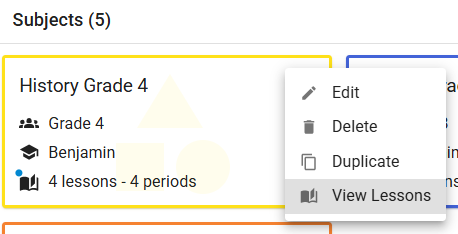 Figure 3 — Accessing the lesson list from Grid View.
You will then see all lessons for that subject.
You may modify any property of a lesson except its class assignment. You can also give a lesson a custom name (e.g., “Science Lab”), which will appear on the Schedule Page.
Lesson numbering does not affect how lessons are placed during schedule generation.
You may also add lesson-specific constraints, though these should be used sparingly—if you find yourself using them often, there is usually a simpler subject-level solution.
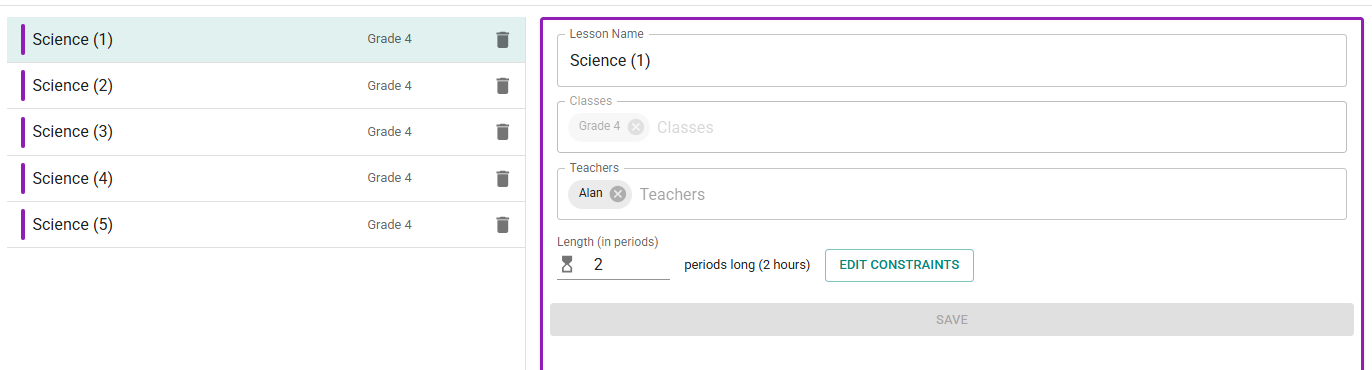 Figure 4 — Viewing and editing individual lessons.