Export Page
Once you have a schedule you’re satisfied with, you can export it as either a PDF or an Excel file.
If you need the schedule in a different format, reach out! We may be able to accommodate requests.
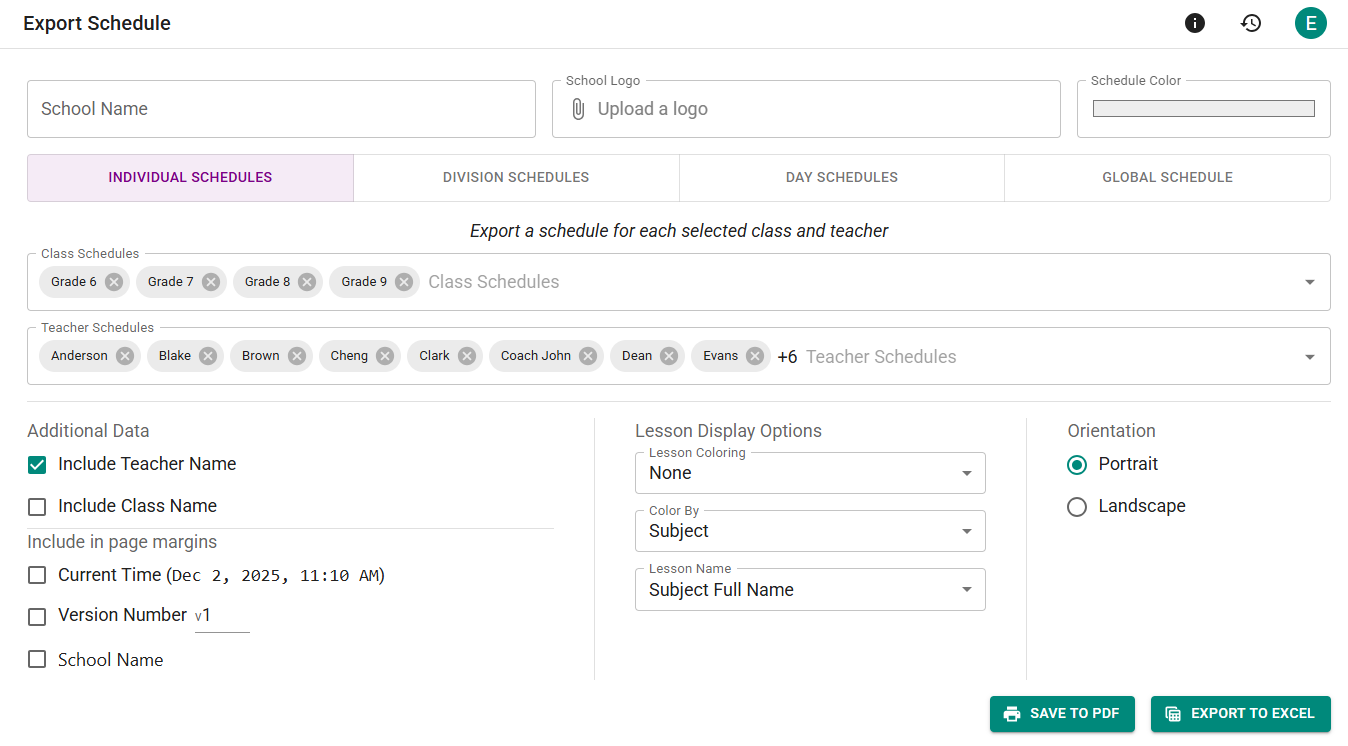
Figure 1 — The Export Page
Options
Set the following export attributes:
- School Name
- School Logo
- Schedule Theme Color
Types of Schedules
Individual Schedules
Exports schedules for:
- Classes
- Teachers
- Classrooms
Division Schedules
Appears only if divisions have been created for a class. This allows exporting student-specific schedules.

Figure 2 — Exporting a class schedule with divisions
Choose the class you want to export from, then select tracks from each division. You may also export every possible schedule variant.
For example, in Figure 2 there are 4 divisions, each with 2 tracks, resulting in
2 × 2 × 2 × 2 = 16 possible variants. You can enable Generate all 16 variants to export them all at once.
Day Schedules
Export the full schedule for one or more selected days.
Global Schedule
Export the complete global schedule.
Additional Formatting Options
Display Information
- Include Teacher Name — Adds teacher names to lessons. For teacher schedules this only applies when multiple teachers teach the same class.
- Include Class Name — Adds class names to lessons. For class schedules this only applies when multiple classes attend the same lesson.
- Current Time — Stamps the export with the generation date and time.
- Version Number — Lets you specify a custom export version number.
- School Name — Displays the School Name on the exported schedule if enabled.
Lesson Display Options
- Lesson Coloring — Choose how color is applied: Fill, Border, or Dot. Select None to disable color.
- Color By — Use the color assigned to the Subject, Teacher, or Class.
- Lesson Name — Defaults to the Subject Full Name. For tighter layouts, use the Subject Short Name. See the Subjects page for details: (link-me-to-subjects-page) You can also use the Lesson Name if you have made customizations to it, but we generally recommend using the Subject Full Name when possible.
Orientation
Controls PDF orientation and affects schedule layout:
- Portrait — Days as columns, periods as rows.
- Landscape — Periods as columns, days as rows.
Version History Tag
Whenever you export a schedule, ScheduLearn automatically saves a version labeled “Schedule Exported.”
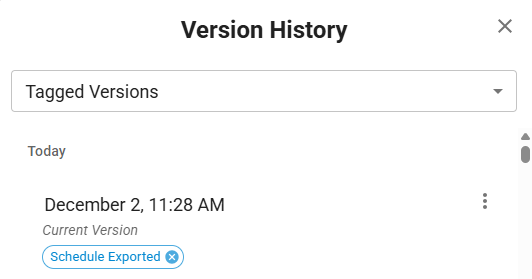
Figure 3 — Version history entry created automatically after export
You can compare timestamps to match printed schedules and restore older versions if needed.