The Constraints Page
Terminology
- Hard Constraint — A requirement that must be met. If it cannot be met, it causes a scheduling conflict. Also referred to as a Red Constraint.
- Soft Constraint — A preference rather than a requirement. ScheduLearn will attempt to satisfy it, but unmet soft constraints do not cause scheduling conflicts. Also referred to as a Yellow Constraint.
The Constraints Page serves three purposes:
- Viewing, modifying, and creating constraints. Almost all constraints can be managed from their specific pages, but this page provides a centralized location.
- Highlighting unmet constraints in your current draft (the schedule shown on the Schedule Page).
- Listing constraints that cause a scheduling conflict. These conflicts are detected when you Validate or Generate your schedule. Any logical inconsistency or impossible requirement will be shown here.
Viewing, Modifying, and Creating Constraints
The constraints page is organized into several tabs, detailed below.
Subject Constraints
Any constraint added to a subject or lesson appears here. You can modify, delete, or disable constraints using the action buttons on the right of each row.
You can also hover over a subject or lesson to reveal additional teacher and class information.
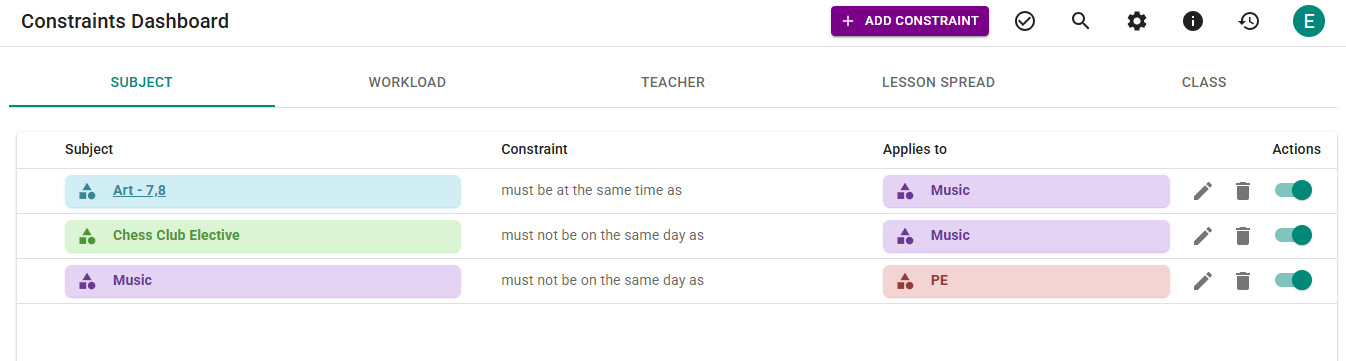 Figure 1 — Subject Constraints Dashboard
Workload Constraints
To add a workload constraint, navigate to the Workload tab and select Add Constraint in the toolbar. You can then choose from the list below.
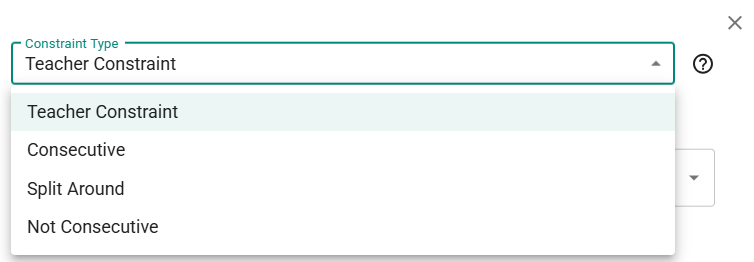 Figure 2 — Adding a Workload Constraint
Constraint Types
-
Teacher Constraint The teacher-specific constraints described in the Teacher Constraints section of the Teachers page. Select the teacher, then the constraint type, then fill in the details.
-
Consecutive Requires a group of subjects to occur consecutively within a defined gap.
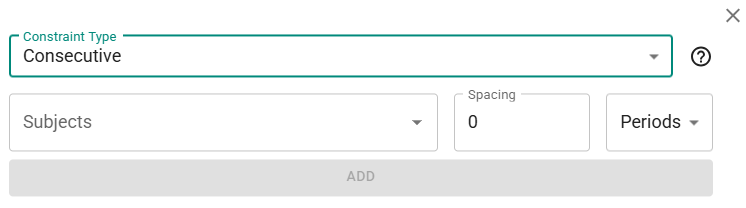 Figure 3 — Adding a Consecutive Constraint
This is more general than the teacher-specific Lesson’s Consecutive constraint, which is effectively the same rule but automatically applied to all of a teacher’s subjects. With this constraint you may choose any subjects — even unrelated ones taught by different teachers.
If the subjects belong to different schedule structures, you must use Minutes instead of Periods.
-
Not Consecutive Subjects in Subjects A must not occur within the specified time frame of subjects in Subjects B.
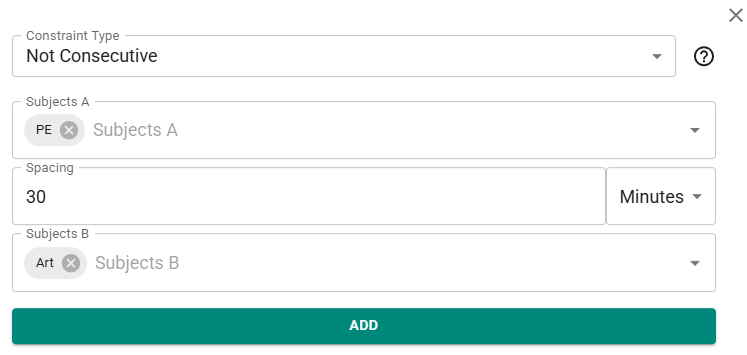 Figure 4 — Adding a Not Consecutive Constraint
If the subjects belong to different schedule structures, ScheduLearn will must use Minutes instead of Periods.
-
Split Around Divides the lessons of one or more subjects so that they are distributed throughout the day.
Figure 5 — Adding a Split Around Constraint
A common use case is distributing “Specials” evenly between morning and afternoon in elementary schools.
Note: You may only select subjects from the same schedule structure.
Calendar Tabs (Teacher, Class, Classroom)
These tabs visualize blocked-off time for each teacher, class, and (if enabled) classroom.
Cells are shaded based on the percentage of teachers with hard or soft constraints in that slot. Clicking any cell shows the detailed breakdown. Clicking a teacher name toggles that teacher’s constraint.
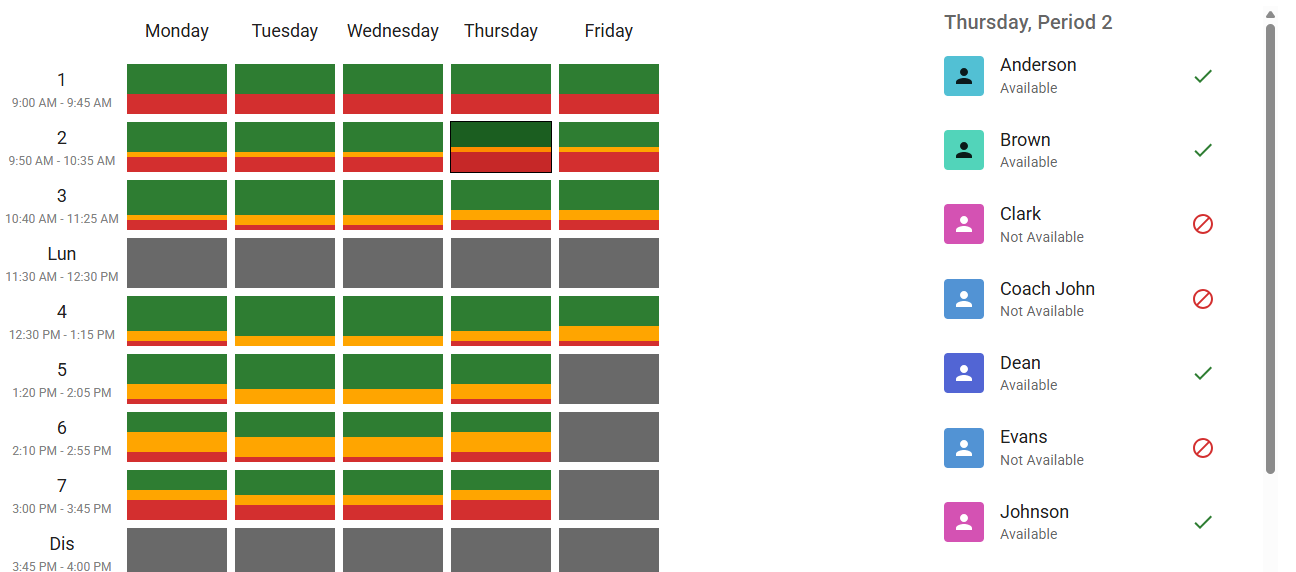 Figure 6 — Teacher Calendar Constraints (Thursday, Period 2)
This view is primarily for visualizing constraints and conflicts; large edits should generally be made on the individual teacher/class/classroom pages.
Multiple Schedule Structures
Calendar constraints apply to a specific schedule structure. For example, a teacher who works in both Middle School and High School and does not teach on Tuesdays must have separate calendar constraints for each structure.
To learn more, see the Teachers Guide section on multi-structure calendar constraints.
You can select the schedule structure in the dashboard toolbar as seen in Figure 7:
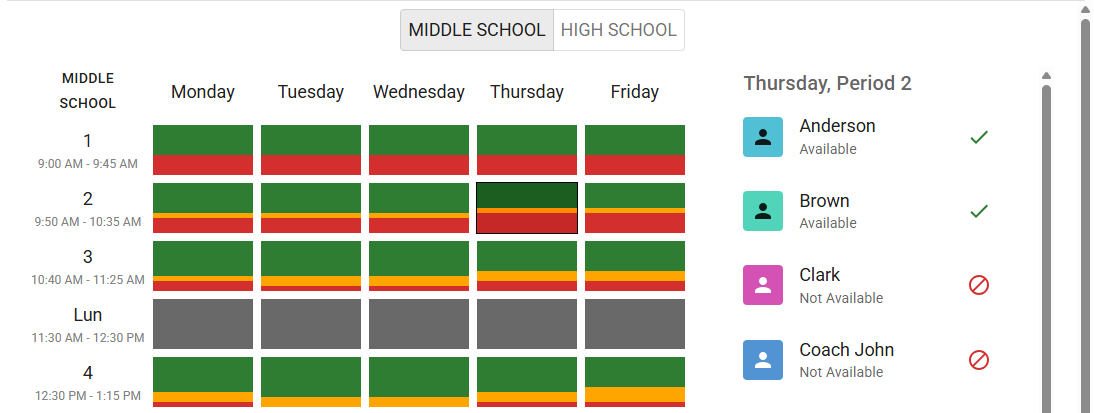 Figure 7 — Selecting a Schedule Structure in the Calendar View
Lesson Spread
This tab lists each subject’s lesson spread constraint and whether its lessons should occur at the same period.
The Same Period checkbox is always treated as a soft constraint, so it never causes a scheduling conflict.
If either the lesson spread rule or the same-period preference is unmet, the row appears highlighted.
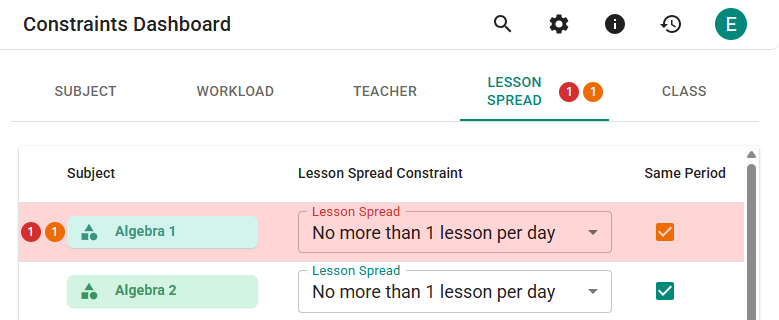 Figure 8 — Unmet Lesson Spread Constraints
In the example in Figure 8, two Algebra 1 lessons were placed on the same day at different periods. Thus:
- the hard constraint (No more than 1 lesson per day) is unmet (red)
- the soft Same Period preference is also unmet (yellow)
The red and yellow numerical indicators on the Schedule Page direct you to the relevant tabs.
The Toolbar
Toolbar actions depend on the selected tab. For example, the purple Add button only appears on the Subject and Workload tabs.
All tabs include filtering options, including a checkbox to display only conflicting constraints—those that are unmet or those contributing to a scheduling conflict.
 Figure 9 — Filter for Only Conflicting Constraints
The toolbar’s settings icon also allows you to enable Constraint Weights (see the Constraint Weights section on the Advanced Constraints Guide).
Unmet Constraints and Scheduling Conflicts
Validating or generating a schedule may reveal a scheduling conflict, which indicates a logical inconsistency among constraints.
 Figure 10 — Scheduling Conflict Banner
Clicking View Details takes you directly to the Constraints Page highlighting the constraints contributing to the scheduling conflict.
Example: Identifying a Scheduling Conflict
As an example, let's create a very obvious scheduling conflict. Suppose Anderson, a Middle School math teacher, is unavailable during Period 7. However, you also require all math courses—including Geometry, which Anderson teaches—to occur in Period 7.
These two constraints cannot both be met.
When you validate the schedule, ScheduLearn identifies a conflict and prompts you to view details.
ScheduLearn attempts to display the minimal set of conflicting constraints—in this case, two:
-
Geometry must be at Period 7 Hovering over Geometry shows it is taught by Anderson (green arrow in Figure 11).
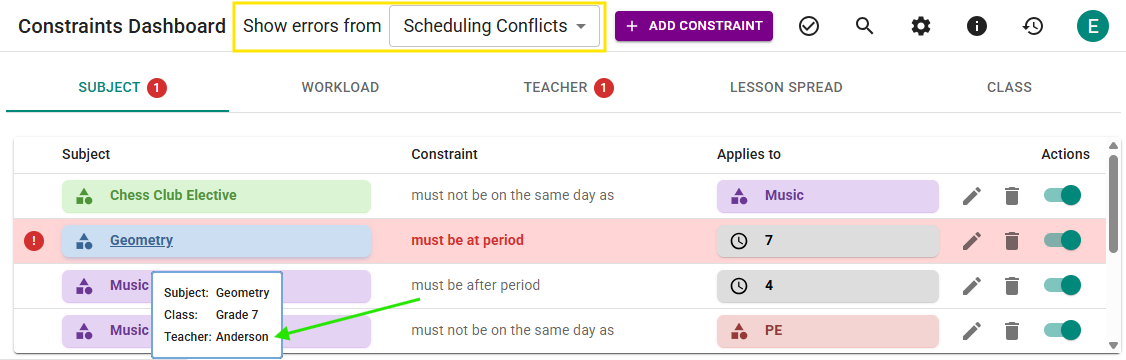 Figure 11 — Constraint Requiring Geometry at Period 7
 -
Anderson is unavailable Monday, Period 7 A red “1” appears on Monday Period 7, indicating one constraint contributing to the conflict. Clicking the cell reveals Anderson’s blocked-off time (green arrow in Figure 12).
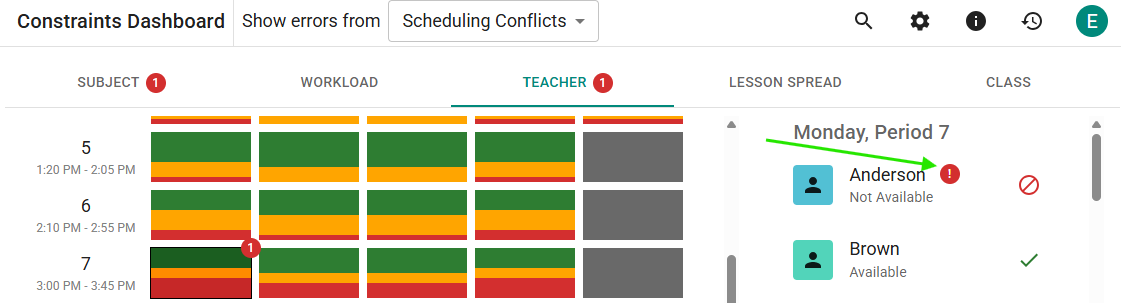 Figure 12 — Anderson’s Monday Period 7 Blocked Time
Although all four days had Period 7 blocked for Anderson, only Monday is shown as problematic. ScheduLearn highlights the smallest set of constraints that form the conflict.
Viewing Unmet Constraints vs. Scheduling Conflicts
By default, highlighted constraints represent unmet constraints in your current schedule draft.
When a scheduling conflict exists, the toolbar displays a dropdown that lets you switch between viewing:
- Unmet Constraints in the current draft
- Scheduling Conflict Constraints
If you click View Details from the conflict banner, the dropdown automatically switches to Scheduling Conflicts.
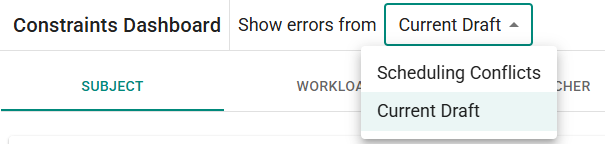 Figure 13 — Selecting Whether to View Unmet Constraints or Scheduling Conflicts
See the Advanced Constraints Guide for more strategies on resolving conflicts.
The dropdown is enclosed in a yellow rectangle in Figure 11.