Constraints Page - Advanced
Generated Division Constraints
When you create class divisions, ScheduLearn automatically generates subject constraints behind the scenes. These constraints ensure that divisions and tracks behave correctly. Because you normally do not need to interact with them, they are hidden by default.
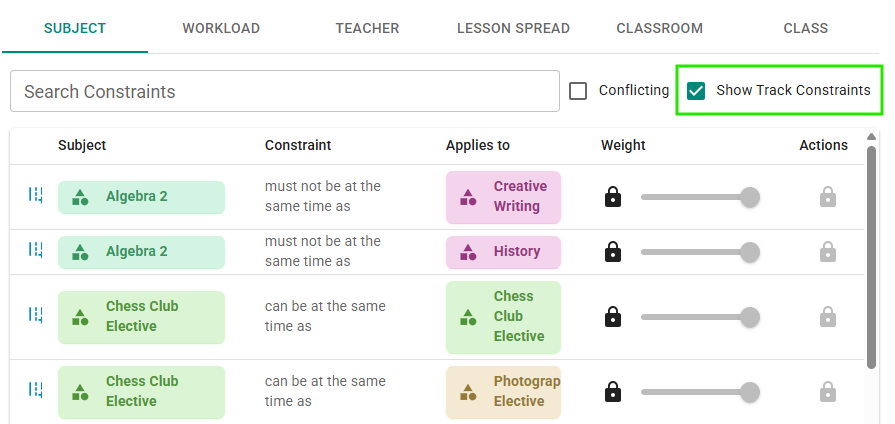 Figure 1: Generated subject constraints for divisions.
To view these constraints, open the filter toolbar on the Subjects tab of the Constraints page. If divisions exist, you will see a checkbox labeled Show Track Constraints (green rectangle in Figure 1). Once enabled, these automatically generated constraints become visible. They are non editable and marked with a blue track icon to distinguish them from user-created constraints.
These constraints create all of the possible pairings based on your divisions and tracks.
You only need to pay attention to these constraints if you create a rule that contradicts them. For example, in Figure 1 the generated constraint states: Algebra 2 must not be at the same time as History. If you later create a constraint stating that Algebra 2 must be at the same time as History, you will introduce a scheduling conflict.
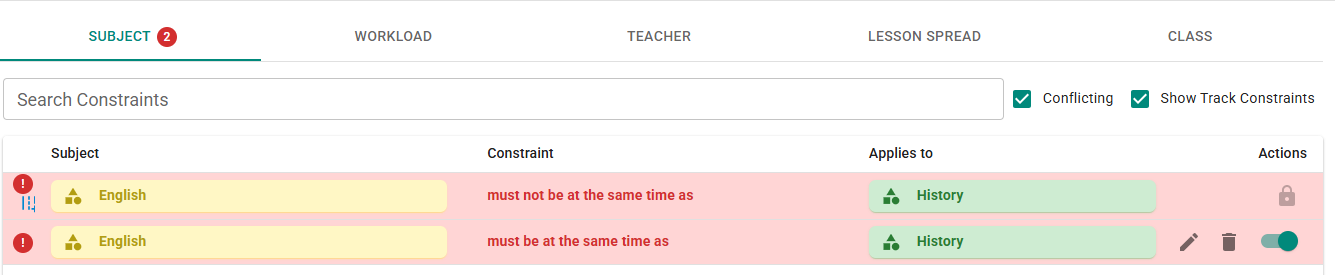 Figure 2: Scheduling conflict between a user-created constraint and an automatic division constraint.
In Figure 2, the scheduling conflict is caused by a user-created constraint that contradicts a division-generated constraint. Without revealing track constraints, it may appear that the only problem is the user-created rule. However, ScheduLearn indicates the total number of conflicting constraints, helping you recognize that an additional hidden constraint is involved.
Constraint Weights
NOTE: This section will be updated once the new teacher-constraint weight system is implemented.
Constraint weights are an advanced feature disabled by default. When enabled for a particular constraint type, you can turn hard constraints into soft constraints—preferences rather than requirements. This works similarly to yellow teacher calendar constraints.
To enable constraint weights, click the settings/gear icon on the toolbar of either the Constraints or Schedule page. In the dropdown, expand Constraint Weights.
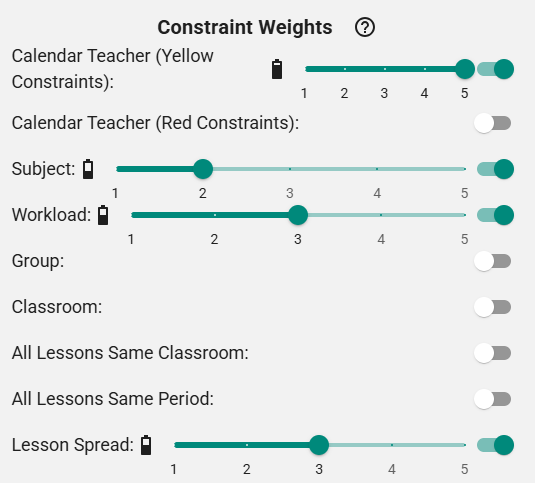 Figure 3: Enabling Constraint Weights.
Each constraint category can be enabled independently. After enabling a category, a slider appears allowing you to assign a category-level weight (in addition to individual constraint weights, explained shortly). In Figure 3, yellow teacher constraints are treated as most important (weight 5), workload and lesson-spread constraints next (weight 3), and subject constraints last (weight 2).
Enabling weights does not change existing constraints immediately, it lets you modify the weights of that group. Anything that was previously a hard constraint remains hard until you adjust its individual weight.
Each constraint can be set to one of the following:
- Off / Disabled
- 1–5 (soft constraint, increasing importance)
- Hard / Locked (requirement)
Below are some examples.
Subject Constraint Dashboard
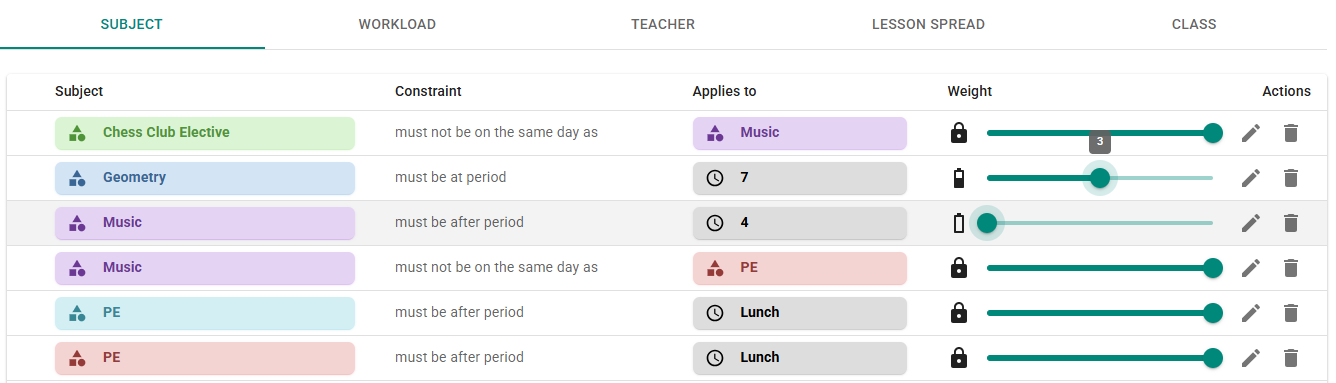 Figure 4: Subject constraint dashboard with weights enabled.
In Figure 4, the second constraint is weighted (3), making it a soft constraint. The third constraint is disabled. All remaining constraints remain hard (note the lock icon).
Workload Constraint Dashboard
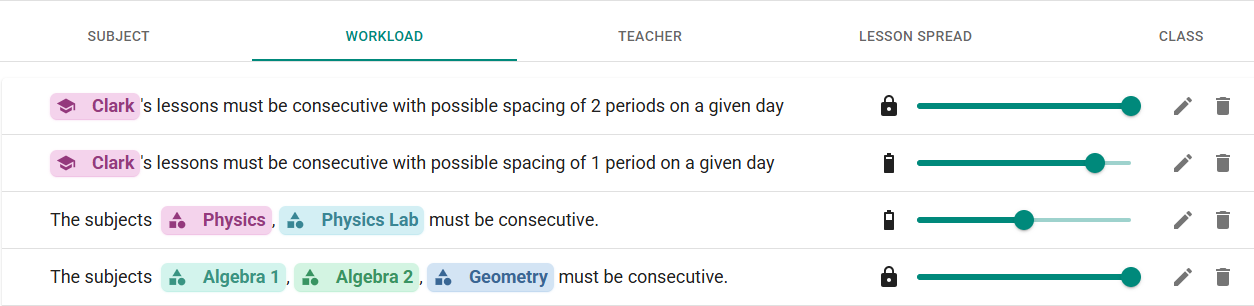 Figure 5: Workload constraint dashboard with soft and hard constraints.
This example shows how soft constraints can produce more optimal schedules. The first two constraints state:
- Clark's lessons must be consecutive within 2 periods (hard)
- Clark's lessons must be consecutive within 1 period (soft)
This means the schedule must meet the 2-period requirement, but will try to minimize the gap to 1 period if possible.
Lesson Spread Constraint Dashboard
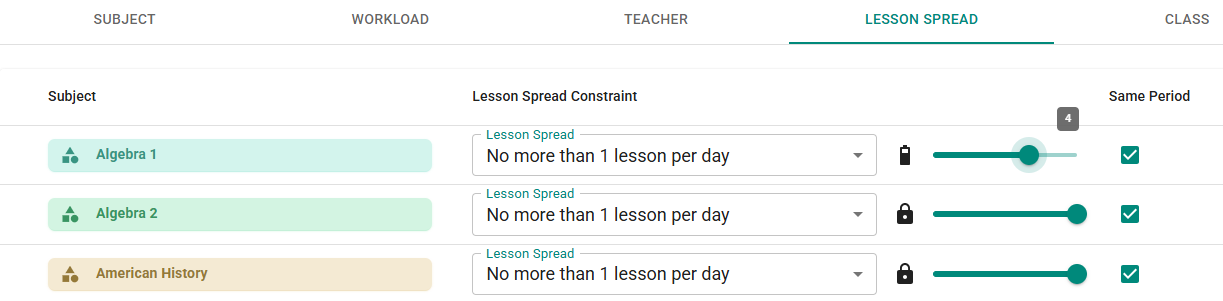 Figure 6: Lesson-spread constraint dashboard with weights enabled.
The lesson spread constraint on Algebra 1 in Figure 6 indicates that it is only a requirement with important of 4 that there are no more than 1 lesson per day.
Note: “Same Period” constraints are always soft.
Weights for Calendar Constraints
Calendar constraints for teachers are not weighted individually; instead, weighting is applied per teacher.
The section on teacher hard/soft constraint weights will be added once the implementation described in the GitHub issue is completed.
Modifying Constraint Weights Using Mass Actions
Several constraint dashboards include a Bulk Actions menu in the toolbar, allowing you to update multiple constraint weights at once.
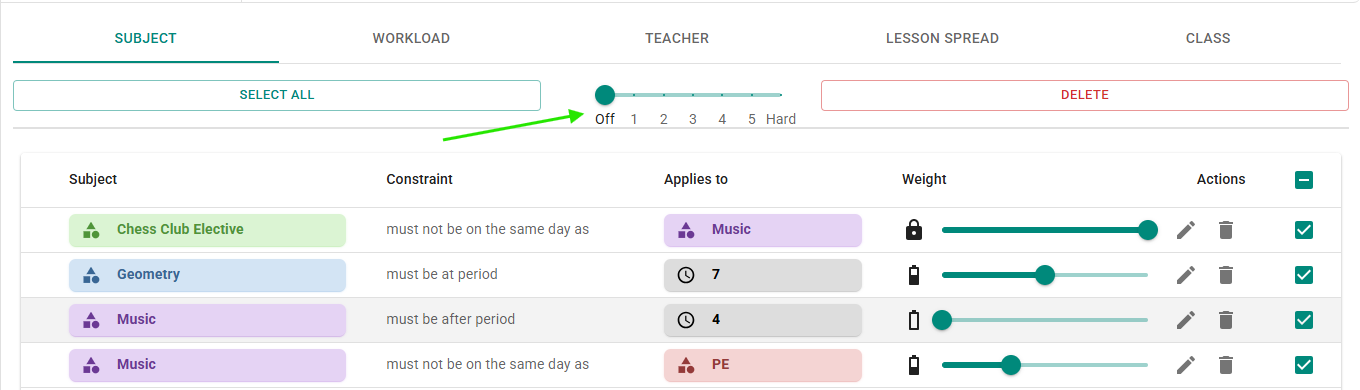 Figure 7: Setting weights using bulk actions.
Select the constraints you want to modify, then choose the desired weight from the bulk actions menu (green arrow in Figure 7).
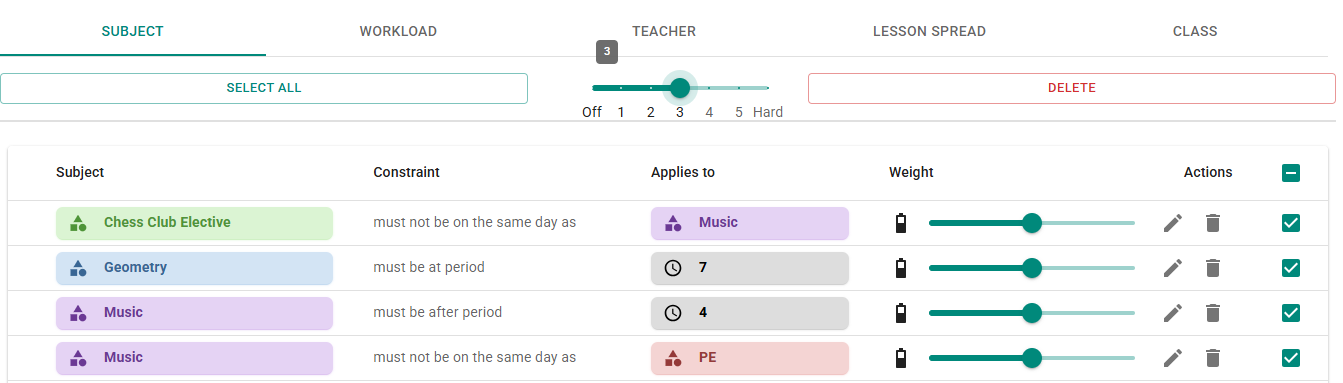 Figure 8: Constraints updated to weight 3 using bulk actions.
Common Sources of Scheduling Conflicts
This section will be written after reviewing examples with Yehuda and reviewing client support cases.
What to Do When the Scheduling Conflict Is Unclear
Sometimes the cause of a scheduling conflict can be difficult to determine—and sometimes understanding why is less important than resolving the issue so you can produce a viable schedule.
If you encounter a scheduling conflict and believe a valid schedule should exist, the most common causes are:
- Incorrect subject data
- Incorrect or contradictory constraints
If the data truly is correct, then the conflict indicates that no valid schedule exists under the given requirements. Although this can be frustrating, discovering the impossibility early allows you to adjust your constraints or subjects before spending additional time attempting to generate a full schedule. Often only a small change is required.
ScheduLearn provides several tools to help isolate the problem:
1. Generate individual schedules
The Validation process attempts to build schedules for each teacher and class separately. If an individual schedule cannot be built, the full schedule cannot be built either.
2. Identify whether the issue spans multiple teachers or classes
Sometimes conflicts arise from interdependencies between multiple teachers or classes. In these cases, Validation may not detect the issue, and the conflict surfaces only during full schedule generation.
3. Examine the constraints marked as contributing to the conflict
This is often the most helpful clue. For example, if all conflicting constraints involve two particular teachers (the teacher calendar constraints are limited to these two teachers, the conflicting subject constraints are taught by one of the two teachers, etc.) this suggests the conflict lies between those teachers.
In such cases, we recommend generating a schedule only for the affected teachers. If that partial schedule also fails, you have successfully isolated the incompatibility. It may be due to insufficient overlapping availability, or because their subjects must occur simultaneously but no shared slot exists.
Generating partial schedules is fast and helps confirm that individual components of the schedule are valid, even when the full schedule is not.
If you've been able to reduce the problem to a smaller section of the schedule and still don't know what to do, we recommend using the Place as many as possible option on the Schedule Page (see here). This will place as many lessons as it can without causing any conflicts. The remaining unplaced lessons are not the sole cause of the problem, but are a contributor.